Yepoleb
LTE Modems on Linux
This article is about my experience testing three different LTE modems on Linux. For my first steps I heavily relied upon the article Getting the Sierra Wireless EM7455 LTE modem working in a ThinkPad with Debian 12 Linux (with GPS) by Neil Brown. There is also a great repository documenting Sierra Wireless cards on Github, which I found later.
I looked into this topic because I wanted a cheap solution for an OpenWrt LTE router. GL.iNet has a cellular router product line, but they were quite expensive, unless you are fine with running an outdated version or OpenWrt. I could not find any satisfactory device, so I decided to explore M.2 NGFF LTE cards with USB cases (they are not active adapters, the cards need to support USB themselves). The solution I ended up with was a Sierra Wireless EM7565 card plugged into a TP-Link Archer C7, but I am planning to replace that router soon, because it is struggling to push more than 50 Mbit/s over USB.
Update: I replaced the Archer C7 with a GL.iNet Beryl AX and it is now managing burst speeds of up to 120 Mbit/s on a 70 Mbit/s plan, so I am very happy.
General Prequisites
I was testing the modems on Debian unstable at the start of 2026.
The first issue I ran into was, that the modems were not showing up in NetworkManager. The solution was to enable ModemManager in systemd. Apparently it is not automatically enabled on Debian. If the following mmcli commands fail, make sure ModemManager is running.
sudo systemctl enable --now ModemManager
After the modem shows up in KDE NetworkManager, I added a mobile broadband connection. It gives the option to choose either a GSM or CDMA connection, but no LTE. The right choice here is to select GSM for anything other than 3G. Luckily all tested providers had presets installed, so I did not have to configure anything manually here. Ideally this should be all that is needed for a connection, but all modems had different quirks.
The tested and properly configured cards were then also used with OpenWrt, which worked out of the box. But I would not recommend doing the initial troubleshooting on the router.
LTE Bearer Settings
Before getting to the modem quirks, what got me confused for the longest time was a specific quirk with the design of LTE, Austrian ISPs and the design of ModemManager. To my understanding, in LTE there is a concept of an initial or default EPS bearer and a dedicated EPS bearer, which are both separate APN settings. When registering in the phone network the initial bearer is used and later the user can select a dedicated bearer from the connection settings. Usually mobile networks should not be too picky about that initial bearer, but all services operated by A1 Telekom Austria are. Unless the correct initial bearer is configured, the network will straight up reject an LTE device even registering in the network with the errors gsm-registration-timeout or esm-failure in journald, but no indication in mmcli of the failure. It will just be in a continuously searching for network state.
The initial bearer seems to be a per device hardware setting, which makes it a bit annoying to change when testing different providers. It can be changed using the --3gpp-set-initial-eps-bearer-settings command of mmcli. I use it like this:
mmcli -m 1 --3gpp-set-initial-eps-bearer-settings='apn=webaut,ip-type=ipv4v6'
To get the modem ID to use with the -m parameter, use the mmcli -L command.
The config strings for the tested Austrian providers are:
A1
apn=A1.net,ip-type=ipv4v6,user=ppp@a1plus.at,password=ppp
bob
apn=bob.at,ip-type=ipv4v6,user=ppp@bob.at,password=ppp
Hot / Magenta
apn=webaut,ip-type=ipv4v6
Lidl Connect / Drei.at
apn=drei.at,ip-type=ipv4v6
Quectel EP06-E
The Quectel was at the same time the simplest and least reliable device. It required no additional configuration, provided a QMI interface right from the beginning, but it drops off the USB bus and resets when it can’t establish a connection quickly enough. I had to set the initial bearer without a SIM card present to prevent it from constantly crashing. When connected, it worked reliably for multiple hours, but I decided against using it because I don’t trust it anymore.
Speeds were okay (about 50 Mbit/s), usually close to the EM7455, but rarely exceeding it. It is a CAT 6 modem with support for up to 2 carrier frequencies. I found the number of carriers to be more reflective of actual performance than the theoretical maximum bandwith. I bought it from AliExpress for 67€, already preinstalled in a USB case. This card has internal antenna connectors which are slightly bigger than usual, so they do not fit into generic USB cases. Do not assume you can reinstall it somewhere else, like I did.
Sierra Wireless EM7455
The Sierra Wireless EM7455 is a solid device, but incredibly configurable, which caused some trouble for me when I had no prior experience with the technology. It came configured in MBIM mode and I changed that to QMI with the method described in Neil’s blog.
sudo qmicli -d /dev/cdc-wdm0 --dms-swi-set-usb-composition=6
The main problem was, that it came with a Verizon firmware preconfigured. I knew nothing about the extensive multi-firmware mechanism of LTE cards, so I assumed a card with support for most international bands would just work in Europe, but it would not find a network to connect to. I was also reluctant to just flash a generic firmware on a potentially vendor locked device, but that was just what it needed. I used the qmi-firmware-update tool to install the generic firmware. After that, everything worked fine and I did not need to disable low power mode, the device handled that automatically.
Speeds were good (about 65 Mbit/s), slightly better than the Quectel, but still limited by LTE CAT 6 and 2 carriers. I got it for 16.50€ from AliExpress, which I think is a good deal. The USB case was ordered separately, more on that later.
Sierra Wireless EM7565
The Sierra Wireless EM7565 gave me the most trouble for the best results. Mostly because it came configured with a proprietary Dell USB product ID. It would show the correct name in lsusb, provide an MBIM interface, but would not allow updating or provide QMI and AT interfaces. It also does not support changing the USB composition using qmicli, it has to be done using AT commands.
If your card comes with a USB PID of 90B1, you need to change it to 9091 to make it behave properly. Since the qcserial driver does not recognize it, we need to make use of the option driver to claim the serial interfaces for us. Otherwise there will be no way to send AT commands.
sudo modprobe option
echo 1199 90b1 | sudo tee /sys/bus/usb-serial/drivers/option1/new_id
It is difficult to predict what the number of the AT USB serial interface will be. I just tried them all with minicom by entering “AT” until one gave me an “OK” back.
sudo minicom -D /dev/ttyUSB2
These are the commands I used to change the USB PID:
AT
ATE1  # Echo commands
AT!ENTERCND="A710"  # Privileged mode
AT!USBPID?  # Show current PID
AT!USBPID=9091   # Change PID
It makes sense to also change the USB composition right away:
AT!USBCOMP?  # Show current configuration
AT!USBCOMP=?  # Print command help
AT!USBCOMP=1,3,10D   # Change to diag, nmea, modem, rmnet (QMI) configuration
Now it’s time to unload the option driver and restart the device with AT!RESET or unplugging.
sudo modprobe -r option
The USB ID should be correct and a QMI device present, along with all the appropriate serial ports. I now was able to update the firmware and the modem was ready to use.
This is the modem I stuck with and decided to get a second one as a backup and experimentation device. The speeds were great, finally maxing out my 150 Mbit/s bandwidth limit. The EM7565 supports CAT 12 communication and aggregation of 3 carriers. I paid about 30€ for the cards and they are definitely worth the upcharge compared to the EM7455, unless speed is none of your concern. I used them in a separate USB case as well.
NGFF USB Adapters
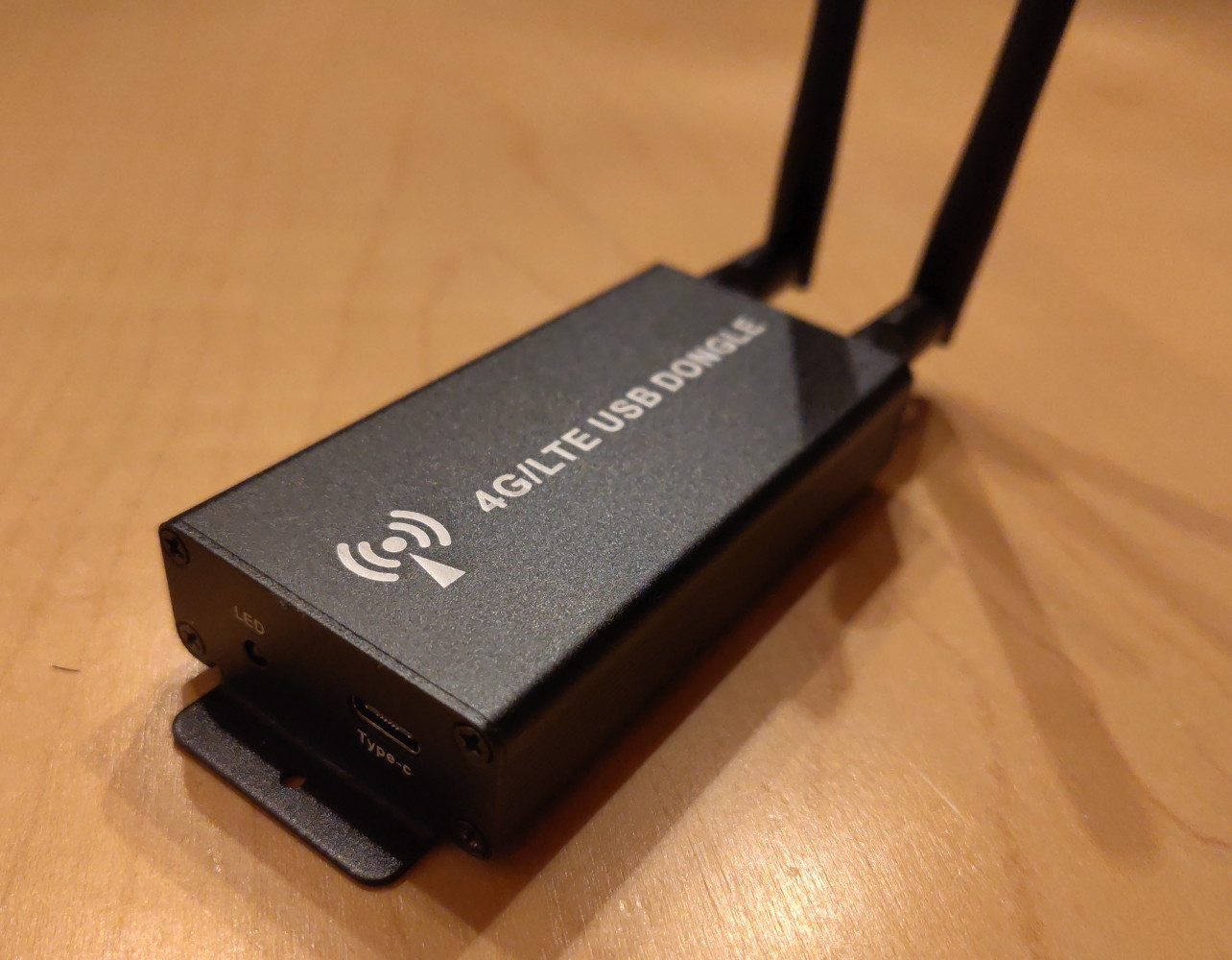
Aside from the case the Quectel EP06-E already came in, I bought two generic NGFF 4G to USB adapters. These are not PCIe adapters, because they do not necessarily talk PCIe and the SIM card slot is part of the case, not the card. I got two different models, because I did not trust them to work well, but luckily both were fine.
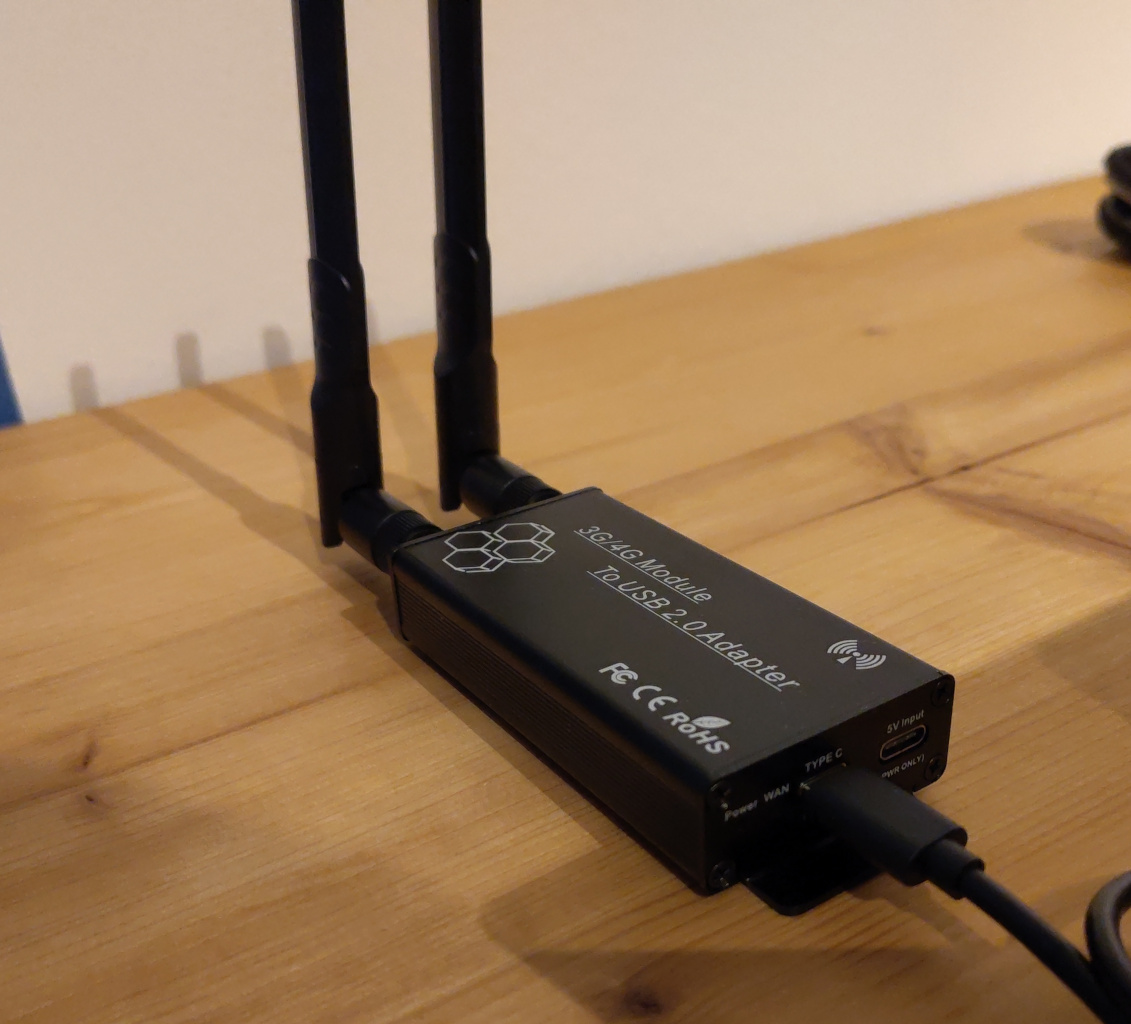
3G/4G Module To USB-2.0 Adapter
Going by the AliExpress listing, this is a 89mm by 45mm case with a height of 19mm. It has two external antennas and two USB-C ports. There are some versions floating around with USB-A on the device side and a special USB-A to USB-A cable, which is not allowed by the specification and would make it difficult to get a replacement cable, so I stayed away from them. The labels on the USB ports mark one as USB2.0 and the other as “PWR ONLY”. I could not find any information if it is necessary to connect an external power source before I bought the product and some listings even show both ports being connected to the same laptop. I am happy to report that this is not necessary, the device works fine with just a single cable connected. Since it only has 2 antennas, the third connector on most 4G cards needs to be left unpopulated, but it is only used for GNSS, so I did not care. I paid 20€ for the adapter case and would recommend it to anyone who needs a simple solution for 4G cards.
M.2 5G Module to Gigabit ETH
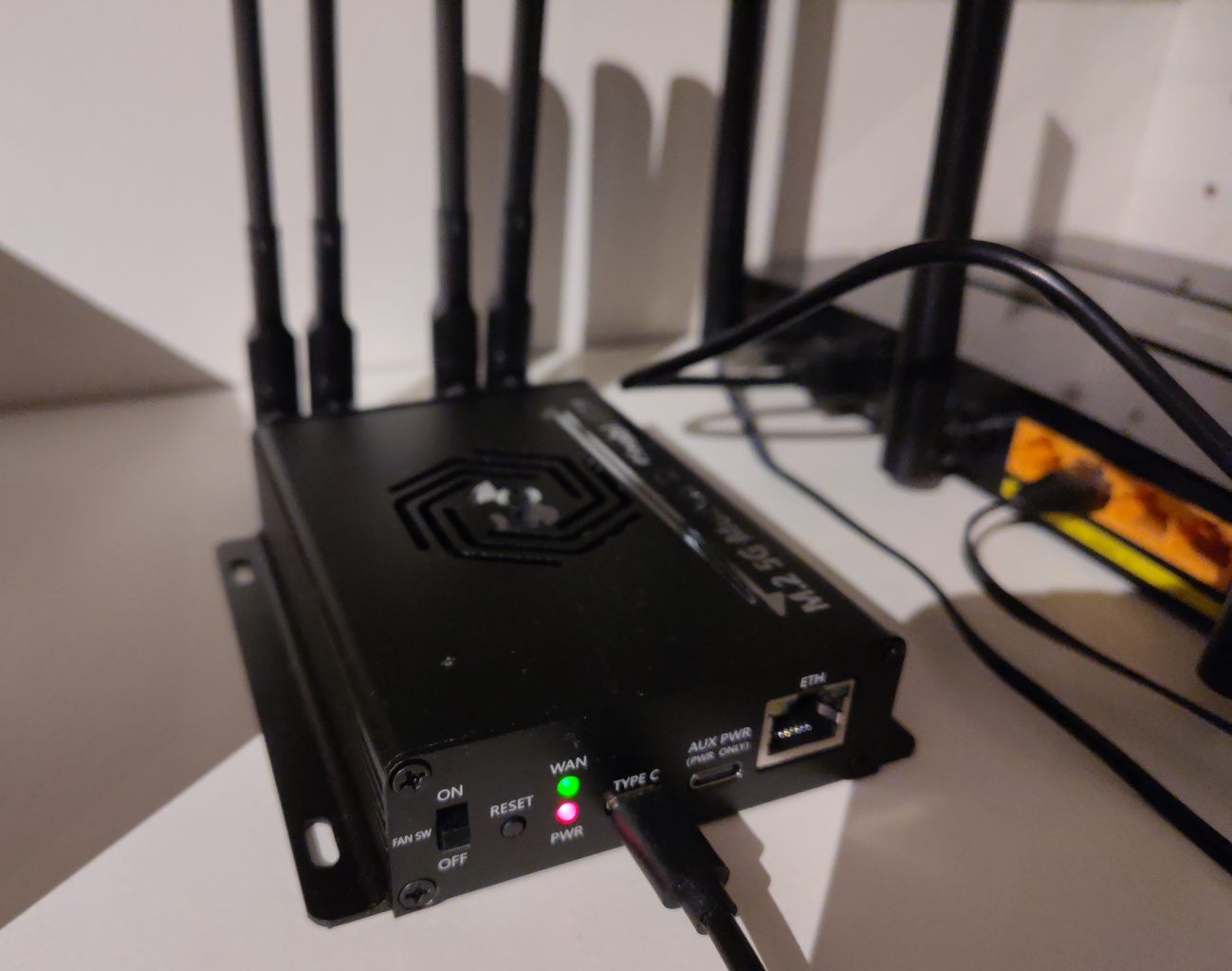
I bought this because I was not sure if 4G is going to be stable enough and to have the option of upgrading to a 5G card later. Instead of upgrading to 5G, I switched to a different provider (from A1 to HoT / T-Mobile Austria) and got perfect reception on 4G for cheaper.
The listing did not come with dimensions, so I measured them to be approximately 116mm by 82mm with 29mm of height. The case is quite big to hold such a tiny card. It comes with 4 external antennas, an internal fan, a fan switch, two USB-C ports and an ethernet port. As with the smaller version, only the the main USB-C cable needs to be connected for the device to function. The ethernet functionality is not documented anywhere and it seems to require support by the card, which is only present in 5G modules. With my 4G modules it did nothing, not even establish a physical ethernet link. I paid 45€ for the adapter case and have to admit, it was a waste of money, it offers only the feature of being future proof compared to the cheaper 4G case.
Conclusion
Support for LTE modems on Linux is really good. The hardware itself is slightly cursed and pre-owned devices come with strange configurations. USB adapters for LTE cards are a great option for adding cellular capabilities to devices. Buy the EM7565 if you want good speeds or the EM7455 if you don’t care.